

Your photos, documents and projects deserve a safe home, but cloud storage and external drives protect them in different ways. Here is how they compare and how to combine them wisely.
Why Where You Store Files Matters
Computers and phones fail more often than people expect. Hard drives wear out, laptops get dropped or stolen and phones end up in pools, and when that happens, any files stored only on that device can disappear in an instant.
Ransomware adds another risk. This type of malicious software encrypts files and demands payment to unlock them, and devices without separate backups leave victims with few good options for recovering their data.
Simple mistakes cause data loss too. Accidentally deleting a folder, saving over an important document or reformatting the wrong drive are common, and a good storage strategy makes these errors easy to undo.
Most people store irreplaceable files without realizing it. Family photos, tax records, school work and creative projects often exist in only one place until something goes wrong and the loss suddenly becomes very real.
Choosing where to keep files is really about balancing convenience, cost and protection. Cloud services and external drives each excel in different areas, which is why many experts recommend using both together.
The Strengths of Cloud Storage
Cloud storage keeps copies of your files on remote servers managed by a provider. You can access them from any device with an internet connection, which makes it easy to share files and work across a phone, tablet and computer.
Because the data is stored offsite, cloud storage protects against local disasters. A fire, flood or burglary that destroys your devices will not affect files safely stored in a well-run data center.
Automatic syncing is a major convenience. Photos from your phone can upload in the background, and documents can stay up to date across devices without you remembering to copy anything manually.
Many cloud services keep previous versions of files and a recycle bin for deleted items. These features let you recover from accidental changes or deletions for a limited period, depending on the service and plan.
Most providers offer a small amount of free storage, with paid plans for larger libraries. For many households, a modest monthly fee covers photos and documents for the entire family at a reasonable cost.
The Strengths of External Drives
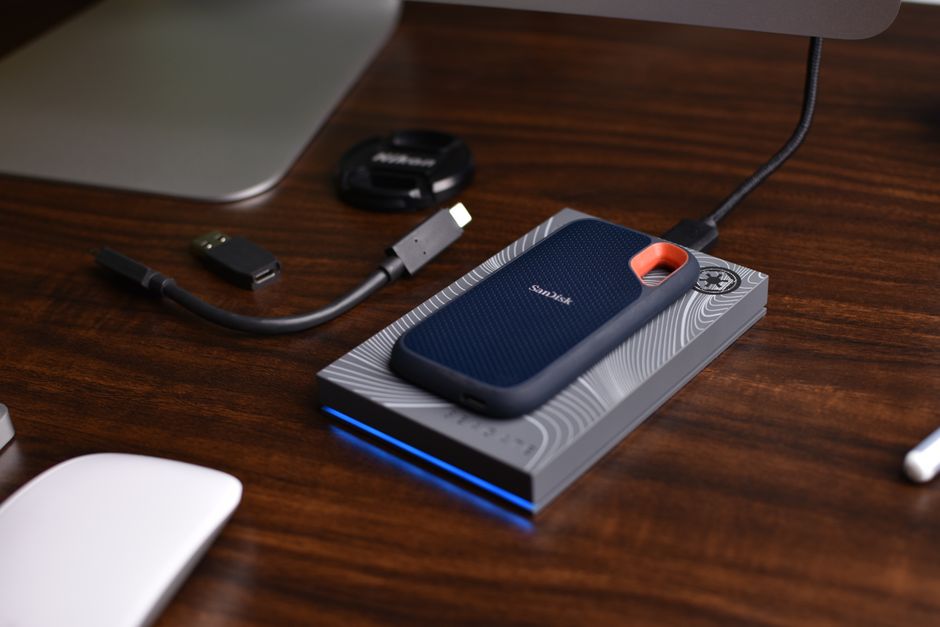
External drives store files on a physical device you control. After the purchase, there are no monthly fees, which makes them cost-effective for large collections of video, photos or games that would be expensive to keep in the cloud.
Transfers are typically fast, especially with solid-state drives and modern USB connections. Backing up or restoring hundreds of gigabytes can take far less time than uploading or downloading the same data over a home internet connection.
Privacy is another advantage. Files on a drive you keep at home are not stored on anyone else’s servers, which appeals to people who want maximum control over sensitive personal or business information.
External drives also work without internet access. If your connection is slow, capped or temporarily down, you can still back up and recover files whenever you need to.
Choosing between drive types matters. Traditional hard drives offer large capacity at a low price per gigabyte, while solid-state drives are faster, lighter and more resistant to drops, though they cost more for the same capacity.
Weaknesses to Keep in Mind
Cloud storage depends on your internet connection and on the provider. Large uploads can take a long time, and if you stop paying or the service changes its terms, you need a plan for moving your files elsewhere.
Syncing is not the same as backup. If a file is deleted or corrupted on one device, syncing may copy that change everywhere, so look for services with version history or use a dedicated backup tool.
External drives can fail, be lost or be damaged along with your computer in the same fire or flood. A drive sitting next to your laptop protects against device failure but not against disasters that affect your entire home.
Drives connected to your computer all the time can also be encrypted by ransomware. Disconnecting your backup drive after each backup reduces this risk considerably.
Both options require some attention. Cloud accounts need strong passwords and two-factor authentication, while drives benefit from encryption, safe storage and occasional checks to confirm the backups actually work.
The 3-2-1 Backup Rule
A widely recommended approach is the 3-2-1 rule. Keep three copies of important data, on two different types of storage, with one copy stored offsite, so no single failure can wipe out everything.
In practice, that might mean the original files on your computer, a backup on an external drive at home and another copy in the cloud. Each layer protects against different risks, from hardware failure to local disasters.
Automate as much as possible. Operating systems include built-in backup tools that can copy files to an external drive on a schedule, and cloud backup services can run quietly in the background without effort.
Test your backups occasionally by restoring a few files. A backup is only useful if it works, and checking once every few months gives you confidence that your data is truly protected.
Combining cloud storage and external drives gives you the best of both worlds. Spending an hour setting up a simple system today can prevent the heartbreak of losing photos, records and work that can never be replaced.