


A sluggish computer does not always need to be replaced. These software fixes and affordable upgrades can restore speed to an aging machine and help you decide if it is truly time to buy new.
Find Out What Is Slowing It Down
Start by opening your system monitor, called Task Manager on Windows and Activity Monitor on a Mac. These tools show which apps are using the most processor power, memory and disk activity, often revealing the culprit within minutes.
Look for programs you do not recognize or did not intend to run. Some apps keep running in the background after you close them, quietly using resources and slowing everything else down.
Check how much memory is in use during your normal routine. If memory is consistently close to full, your computer is likely swapping data to the drive, which causes noticeable lag when switching between apps.
Pay attention to when the slowdown happens. A computer that is slow only at startup has different issues from one that struggles constantly, and one that slows down only in the browser may simply have too many tabs or extensions.
Knowing the cause helps you choose the right fix. A few minutes of investigation can save you from spending money on upgrades that do not address the actual problem.
Clean Up Startup and Background Apps
Many programs add themselves to startup without asking. Over time, a long list of apps launching at boot can make your computer take several minutes to become usable, especially on older hardware.
Review startup items in your system settings and disable anything you do not need immediately. Chat apps, update helpers and utilities can usually be opened manually when you actually want them.
Uninstall programs you no longer use. Old trial software, games and utilities consume storage and may run background services, and removing them frees resources while reducing security risks from outdated software.
Be especially wary of so-called optimizer or cleaner apps that promise dramatic speed boosts. Many are unnecessary, some are aggressive about upselling and a few behave like unwanted software themselves.
Restarting regularly also helps. Computers that run for weeks without a restart can accumulate memory leaks and stuck processes, and a simple reboot often makes a sluggish machine feel responsive again.
Consider the apps that launch with your web browser as well. Some browsers and extensions keep running after you close every window, and turning off background activity in browser settings can return memory to the programs you are actually using.
Free Up Storage and Update Software
A nearly full drive can slow your computer considerably. The operating system needs free space for temporary files and updates, so aim to keep at least ten to fifteen percent of your storage available.
Use built-in storage tools to find large files and folders. Old downloads, duplicate photos, unused videos and leftover installer files often take up surprising amounts of space and can be deleted or moved to an external drive.
Install operating system and driver updates. Updates frequently include performance improvements and security fixes, and running outdated software can cause compatibility problems that slow things down.
Run a full malware scan with your built-in security software or a reputable antivirus tool. Malware and adware can consume resources, display unwanted pop-ups and make even a capable computer feel painfully slow.
Clean up your browser as well. Removing unused extensions, clearing cached data and closing dozens of open tabs can make a dramatic difference, since modern browsers are often the most demanding apps people use.
Affordable Hardware Upgrades
Replacing an old hard drive with a solid-state drive is often the single most effective upgrade. SSDs make startup, app launches and file searches dramatically faster, and prices have fallen enough to make this upgrade very affordable.
Adding memory can help if your computer regularly runs out. Upgrading from four or eight gigabytes to sixteen can make multitasking much smoother, but check first whether your model allows memory upgrades.
Many desktops and some older laptops are easy to upgrade with basic tools. Online guides and videos for specific models walk you through the process, and local repair shops can do the work for a modest fee.
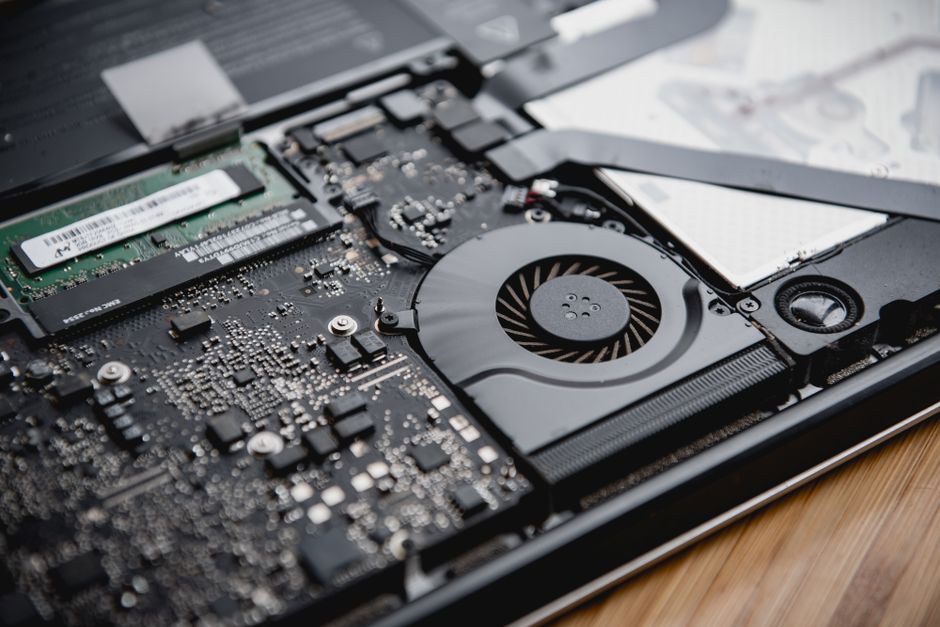
Overheating can also cause slowdowns, since processors reduce speed to protect themselves. Cleaning dust from vents and fans with compressed air can restore performance, especially on laptops several years old.
Before upgrading, compare the total cost with the price of a new computer. If the machine is very old, the money might be better spent toward a replacement that will receive security updates for years.
When It Is Time to Replace It
If your computer no longer receives operating system or security updates, replacement deserves serious consideration. Running unsupported software exposes you to security risks that no amount of cleanup can fix.
Repeated hardware failures are another sign. A failing battery, flickering display, broken hinge and failing keyboard together may cost more to repair than the computer is worth.
Consider whether your needs have changed. If you now edit video, use demanding software or join frequent video calls, an older machine may simply lack the power required, even after upgrades.
A fresh installation of the operating system is a final option before replacing. Back up your files first, then reinstall to start clean, which removes years of accumulated clutter and often restores much of the original speed.
With a little effort, many computers can gain several more years of useful life. Cleaning up, updating and making one or two smart upgrades can save hundreds of dollars and keep a working machine out of the landfill.